
Travel Tips
How to install an eSIM
Install your eSIM in minutes. Follow these steps before you fly so you can land connected.
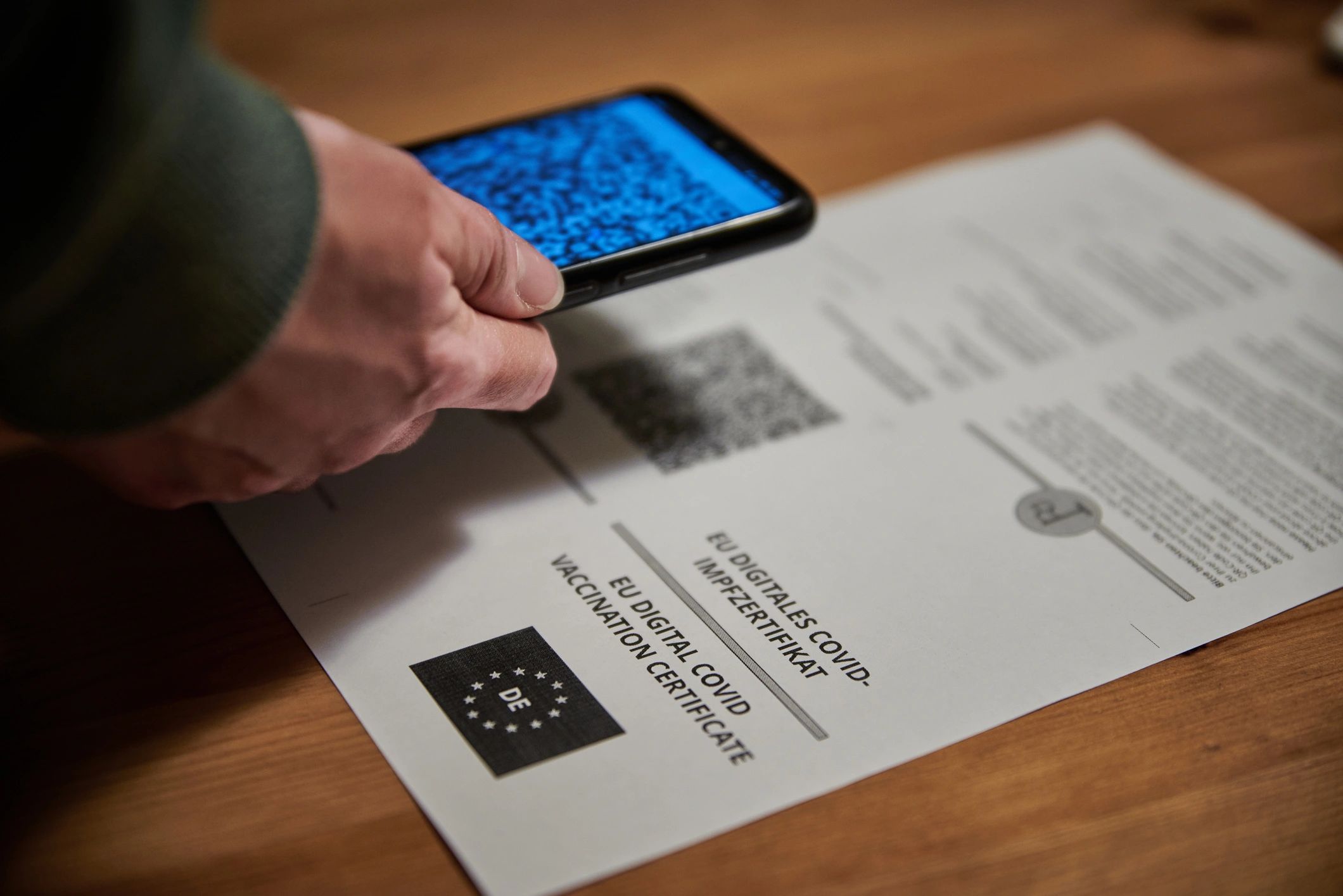
Step-by-step installation
Most eSIMs are installed by scanning a QR code or entering details manually. Use the checklist below to avoid common setup issues.
Before you start: what you’ll need
A stable Wi‑Fi connection, your eSIM QR code (or SM‑DP+ address + activation code), and a compatible device.
Option 1: Install by QR code (recommended)
Open your phone’s cellular settings, choose Add eSIM, then scan the QR code. Name the line (e.g., “OneTap eSIM”) so it’s easy to find later.
Option 2: Manual install (if QR scan fails)
Choose Enter details manually and paste the SM‑DP+ address and activation code exactly as provided (no extra spaces).
When should I turn on data roaming?
Turn on data roaming for the eSIM line after you arrive (or right before departure). Keep your primary SIM roaming off to avoid charges.
How do I confirm it’s working?
Set the eSIM as your Cellular Data line, then open a website. If it doesn’t connect, restart your phone and check APN settings if provided.
Support
Need help installing your eSIM?
If you’re stuck, our support team can walk you through setup and activation.