
Travel Tips
iPhone vs Android eSIM setup
Both platforms support eSIM, but the menus and naming differ. Here’s what to look for on each.
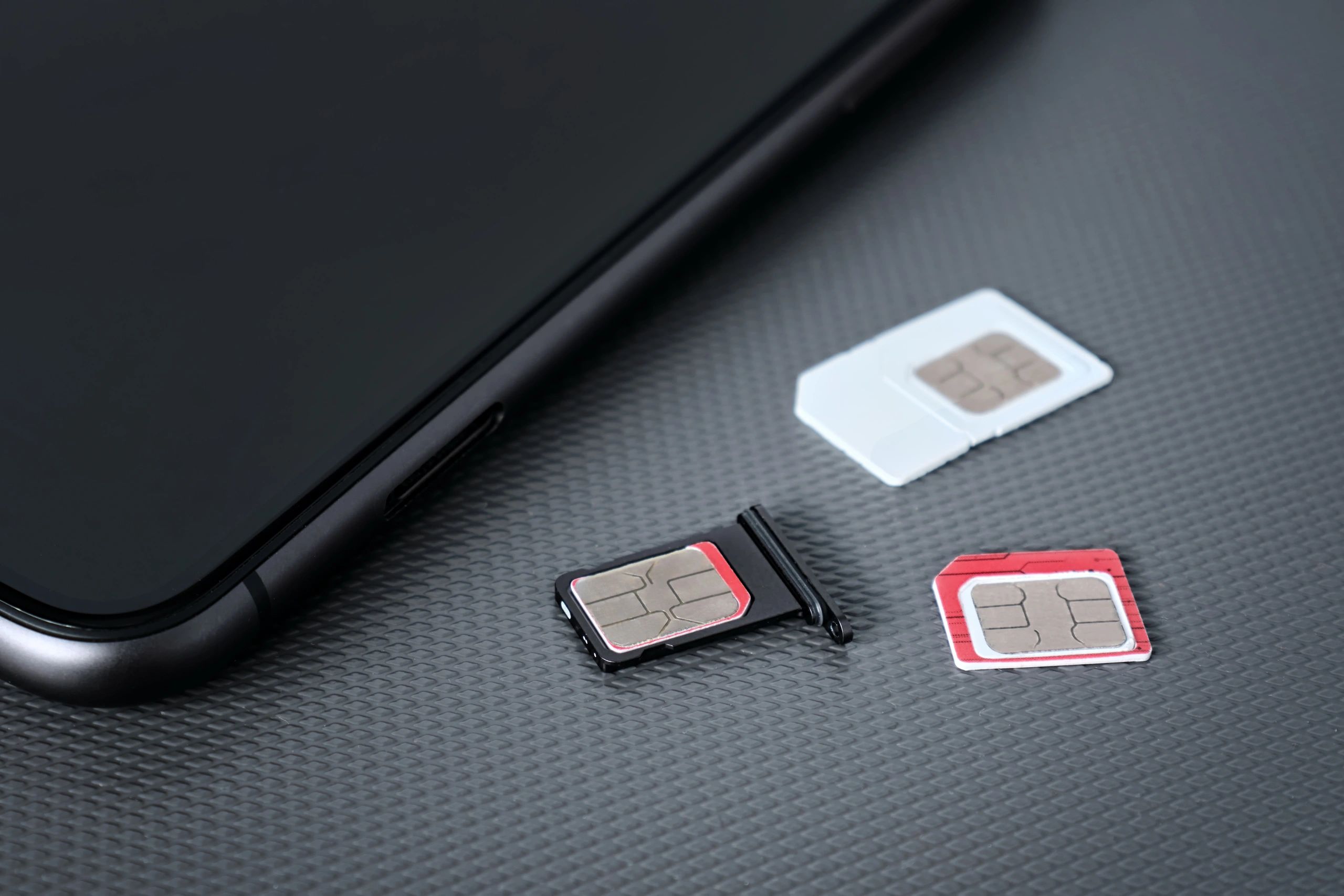
Setup differences at a glance
Use these pointers to find the right settings quickly, then follow your plan’s install instructions.
iPhone: where to add an eSIM
Settings → Cellular (or Mobile Data) → Add eSIM. You can scan a QR code or enter details manually.
Android: where to add an eSIM
Settings → Network & Internet (or Connections) → SIMs → Add eSIM. Menu names vary by brand.
Naming your eSIM line
On both, label the line (e.g., “OneTap eSIM”) to avoid selecting the wrong SIM for data.
Data roaming toggle
Enable data roaming for the eSIM line when traveling. Keep roaming off on your primary SIM to avoid charges.
Dual SIM tips
Keep your primary SIM for calls/text, and set the eSIM for data. Disable “Allow Cellular Data Switching” if you want to prevent fallback to your main SIM.
If you can’t find eSIM options
Your device may be carrier-locked or not eSIM-capable. Check our Compatibility page or contact support.
Not sure if your phone supports eSIM?
Use our compatibility checker before you buy.